Monitoring ConfigMgr 2012 SP1 via OpsMgr 2012 SP1

This post will describe the setup that is needed in order for your OpsMgr 2012 SP1 environment to monitor your ConfigMgr 2012 SP1 site.
First download the MP via this URL http://www.microsoft.com/en-us/download/details.aspx?id=34709

Execute the installer and you will end up with 4 files:

  • EULA.rtf
  • Microsoft.SystemCenter2012.ConfigurationManager.Discovery.mp
  • Microsoft.SystemCenter2012.ConfigurationManager.Library.mp
  • Microsoft.SystemCenter2012.ConfigurationManager.Monitoring.mp

Import the 3 Management Pack Files for ConfigMgr.

So go the Administration tab –> Management Packs –> choose the Add button from disk.

Then make an Override Management Pack for this MP!

After importing and installing you get a new monitoring view (System Center 2012 Configuration Manager)

For the Configuration Manager monitoring pack to discover objects, you must turn on Agent Proxy on every site server except for the primary site and the central administration site.

It might take some time before your ConfigMgr 2012 SP1 components appear in the OpsMgr 2012 SP1 environment…

After that is done, you can go back to the monitoring tab and choose under SCCM 2012.
Hierarchy Diagram. This will give you a diagram over your SCCM site.

Any alerts (RED X’s) can be clicked and you can drill down to your problem. The MP looks very good and complete.

Be sure to read the manual, a lot of rules are disabled by default. Also performance monitoring is disabled by default.

OpsMgr 2012 Management Packs for Windows Server 2012 and SCCM 2012 SP1

All Management Packs can be found in Pinpoint:

http://systemcenter.pinpoint.microsoft.com/en-US/applications/search/operations-manager-d11?q=

Here is an overview of Server 2012 MPs:

Monitoring Pack for System Center Configuration Manager 2012 (SCCM) http://www.microsoft.com/en-us/download/details.aspx?id=34709
Exchange Server 2013 Management Pack http://www.microsoft.com/en-us/download/details.aspx?id=39039
Windows Server Hyper-V 2012 http://www.microsoft.com/en-us/download/details.aspx?id=36438
Windows Server DNS 2012 http://www.microsoft.com/en-us/download/details.aspx?id=37141
J2EE, JBoss, Tomcat, Weblogic, WebSphere http://www.microsoft.com/en-us/download/details.aspx?id=29270
Windows Server Cluster http://www.microsoft.com/en-us/download/details.aspx?id=2268
Windows Server Network Load Balancing http://www.microsoft.com/en-us/download/details.aspx?id=13302
Windows Deployment Services http://www.microsoft.com/en-us/download/details.aspx?id=36817
Windows Server File iSCSI & Services http://www.microsoft.com/en-us/download/details.aspx?id=34970
Windows Server Backup http://www.microsoft.com/en-us/download/details.aspx?id=36390
Network Devices with Extended Monitoring Capability http://www.microsoft.com/en-us/download/details.aspx?id=26831
Monitoring Pack for Message Queuing http://www.microsoft.com/en-us/download/details.aspx?id=36775

System Center 2012 SP1 – Evaluation VHDs

Want to test, play or evaluate the new System Center 2012 SP1 products?

Microsoft launched the public VHD’s for System Center 2012 SP1.
The download consists of a single pre-configured VHD file for the System Center 2012 SP1 product.

These downloads are free for everyone who wants to see what the new System Center 2012 SP1 products are about.

System Center 2012 Service Pack 1 Evaluation VHDs can be found at the following locations:

System Requirements:

Microsoft Windows Server 2008R2 with Hyper-V is required to use this VHD to create a virtual machine.

Happy testing!

Microsoft System Center 2012 Endpoint Protection Cookbook

Hi,

I have done a book review on the Microsoft System Center 2012 Endpoint Protection Cookbook which I wanted to share with you.

The auther, Andrew Plue, has done a great job on explaining the latest and greatest anti-virus and anti-malware product of Microsoft, Endpoint Protection.

The book was published by Packt Publishing and can be found here!

Microsoft Forefront EndPoint Protection 2010 Cookbook

Microsoft Forefront EndPoint Protection 2010 Cookbook

Have fun with it, I did!

Deploy Applications in SCCM 2012

Hi,

Let’s take a look at application deployment in ConfigMgr 2012.

First of all, things have changed. And for the better.
In SCCM 2007 an user would get his/her software mandatory (pushed) or published via RAP (Run Advertised Programs) or Add/Remove Programs, both found in the Control Panel. For most system administrators and users this was not so nice.

Now we still have the possibility of pushing out software, but the RAP is gone.
Actually it is not gone but replaced with something smarter, the Software Center.

So how dows this work?

  1. Create Application
    In order to deploy anything we first have to create an application.

    Create Application SCCM2012

    Create Application SCCM2012

    With the application wizard we have a few options:
    – Windows Installer (Native) –> MSI
    – Microsoft Application Virtualization — App-V
    – Windows Mobile Cabinet –> Windows Mobile
    – Nokia SIS/JAR –> Symbian sis/jar packages

    Application Wizard

    Application Wizard step 1

    The application is imported successfully.

    Application Wizard

    Application Wizard step 2

    Continue with the wizard. I have created an Administrative category “Tools”, will come in handy later 😉

    Application Wizard

    Application Wizard step 3

    And there it is, our application:

    Application Wizard

    Application Wizard step 4

  2. Deploy the application.
    Let’s deploy the application to a User Group. Nice because we set-up Active Directory with the needed Groups and now we want to use them.
    I have created a XMLNotepad collection which it filled with the Security Group XMLNotepad.

    SCCM2012 Deploy Application

    SCCM2012 Deploy Application

    Deploy Application

    Deploy Application Wizard

    This is where we set the Required or Available option, and whether to Install or Uninstall the application. Rather cool huh!

    Deploy Application Wizard

    Deploy Application Wizard

  3. See the action.
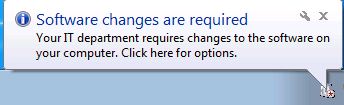
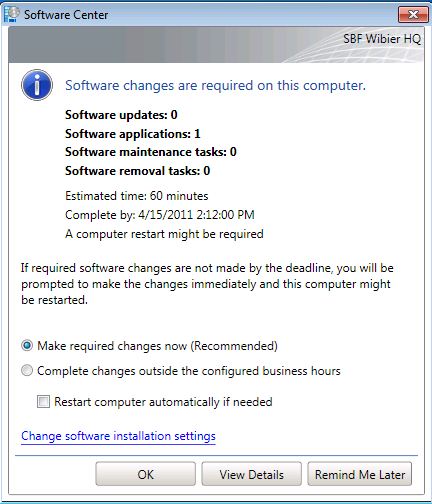
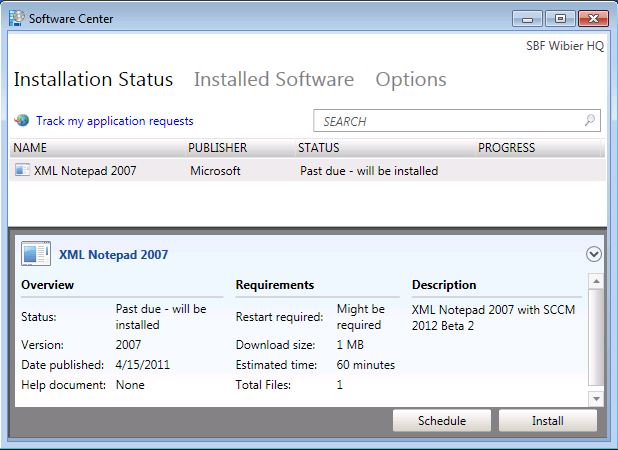
    Now log on to the client and see the Application delivery.

    So that’s pretty cool and easy!